

How to Remove Blemishes and Wrinkles From Photos
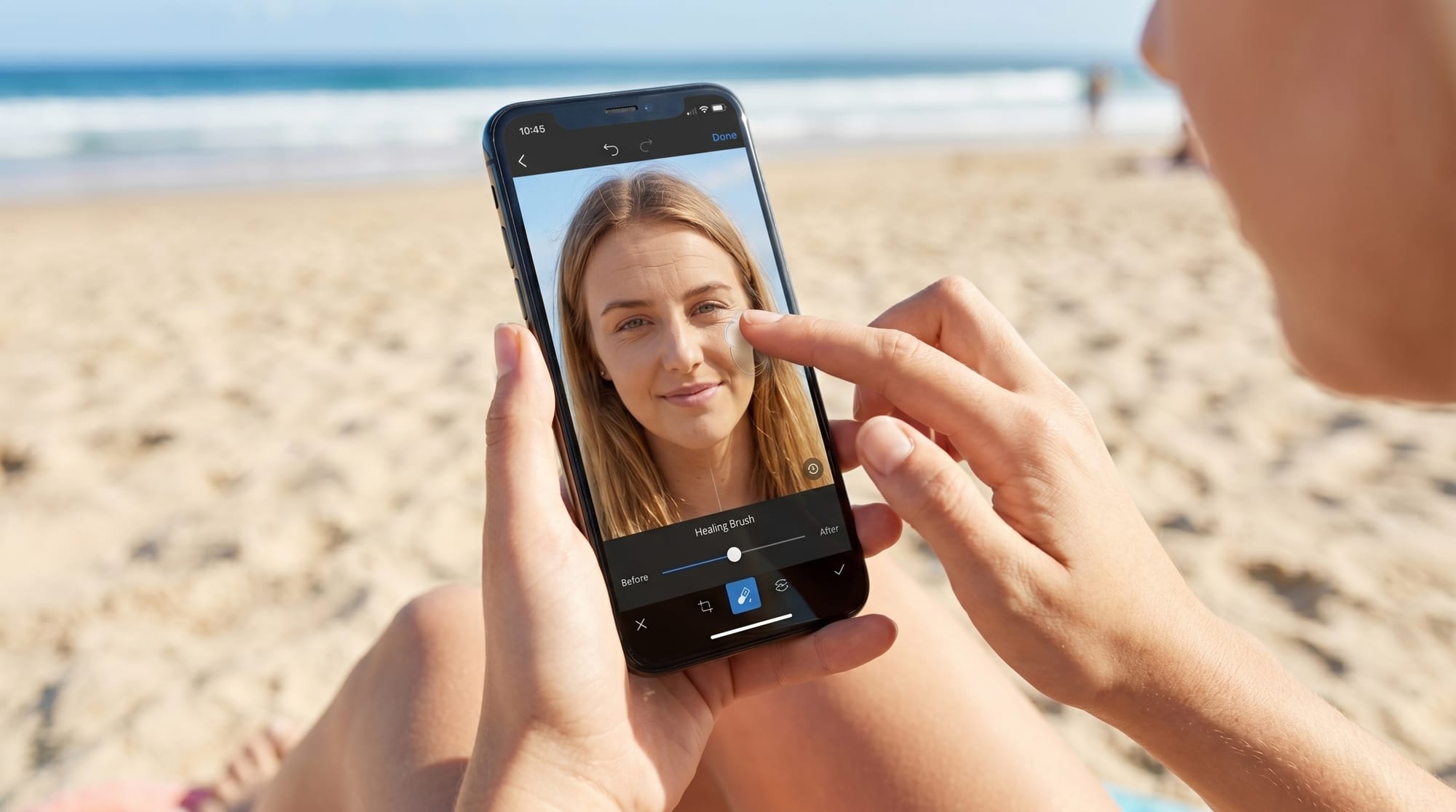
AI photo retouching apps automatically detect skin imperfections and smooth them with a single tap.
AI photo retouching apps automatically detect skin imperfections and smooth them with a single tap. A single pimple in the wrong spot can ruin a great photo. Removing blemishes from photos is easier than ever, and modern tools do the work automatically without leaving your skin looking artificial.
What Natural Skin Retouching Actually Does
When you remove blemishes from a photo, the software replaces the discolored area with the surrounding skin tone. AI-powered apps, like Facelab, analyze your whole face and blend corrections into the surrounding skin so the result looks consistent rather than patched.
The same principle applies to wrinkles and fine lines. The tool identifies the crease and smooths the skin along it. This preserves your overall facial texture rather than uniformly blurring everything.
How to Remove Blemishes From Photos Naturally
The most common mistake in skin retouching is overdoing it. The goal is to reduce imperfections until they no longer draw the eye, not to erase every single pore. When every pore disappears, the edit becomes more noticeable than the original blemish.
Tools that let you control the intensity of the smoothing give you the best balance. Starting at a low setting and gradually increasing it produces a highly natural result.
How to Remove Blemishes on Face with AI Tools
AI-based retouching in Facelab works differently from manual editing. The app analyzes your face, identifies areas needing correction, and applies adjustments automatically. This automated process makes professional-level photo editing accessible to anyone without graphic design experience.
Facelab handles all kinds of skin retouching, including blemish removal, skin smoothing, and wrinkle reduction. You upload a photo, select the retouching option, and adjust the strength slider to your liking.
Wrinkle Reduction Without Losing Character
Wrinkles carry character, and flattening them completely makes a face look less human. Reducing deep lines in harsh lighting areas while leaving lighter lines untouched keeps the photo looking like a genuine version of you.
Eye bags and dark circles often appear worse in photos due to camera lighting. Brightening the under-eye area is one of the quickest ways to make a portrait look fresher without looking fake.
Getting Consistent Results Across a Set of Photos
Retouching one photo to a specific standard and doing the same for a second can produce mismatched results. Using the same tool and intensity settings across a batch of photos keeps your corrections perfectly consistent.
Skin tone also varies across photos depending on the light source. Adjusting the skin tone alongside the skin retouching ties a set of photos together beautifully.
Try It for Yourself
Facelab includes skin retouching, blemish removal, and wrinkle reduction in its editing toolkit. Upload a photo, apply the adjustments, and get the result in seconds.
Frequently Asked Questions
Can I remove blemishes from photos for free?
Yes. Several apps offer free skin retouching tools that handle basic blemish removal and skin smoothing. More detailed tools that give the best results, such as those found in Facelab, are available in premium versions.
How do I remove blemishes from photos without making them look fake?
Keep the correction subtle by using a lower intensity setting rather than the maximum. Preserving some natural skin texture is the key to keeping your edited photos realistic.
Does removing blemishes also remove freckles and moles?
It depends on the tool you use. High-quality apps, like Facelab, give you targeted control so you can remove specific spots without erasing your natural freckles or beauty marks.
More in Tutorials
View all
How FaceLab Avoids the Common Pitfalls of AI Editing
AI photo editing mistakes are easy to observe on social media. Whenever a new trend emerges, you can easily spot what's fake.
How to Try a New Hairstyle in a Photo Before You Cut Your Hair
Big haircuts are easier to commit to when you've already seen them on yourself. AI hair editors get convincing — here's how to use them well.

How to Increase Photo Resolution Without Losing Quality
AI upscaling has changed what's possible with low-resolution images. Here's when it works, when it doesn't, and how to get the most from it.

