

How to Perfectly Retouch Your Face Without Losing Realism
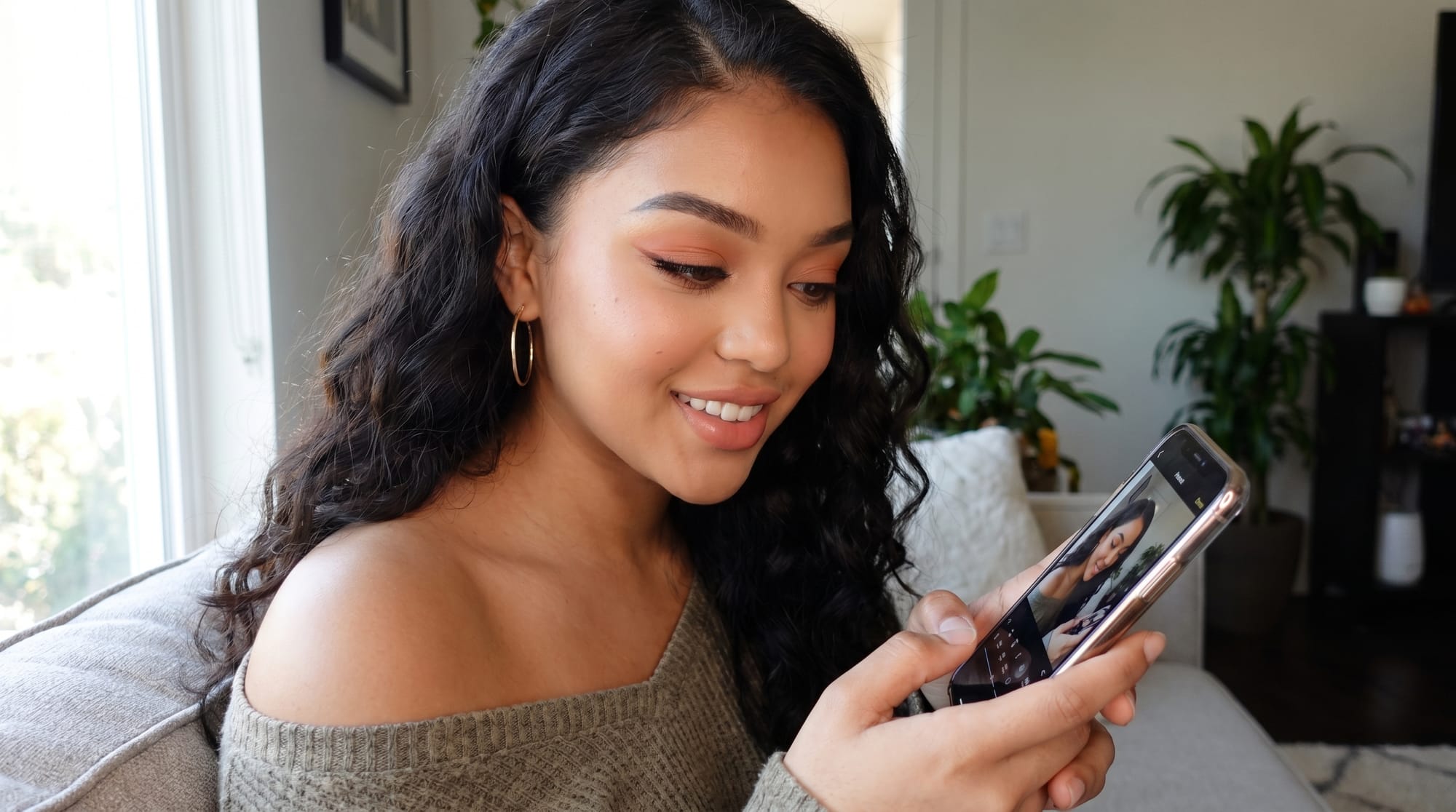
Face retouching done right is invisible. When your edits work, nobody looks at your photo and thinks it was edited.
They just see a version of you that looks confident, polished, and completely real. That result takes a deliberate approach, and Facelab's AI face editing tools are built to help you get there.
Perfect Your Face Photos Naturally with Facelab
Natural-looking retouching starts with understanding what you are actually trying to change. Most people want to remove temporary imperfections from the skin and bring out their best features without replacing them. That is a very different goal from applying a filter or entirely transforming how your face looks.
Facelab is built around that distinction. Every tool in the app, from Smooth to Sculpt to Fix, is calibrated to work with your existing facial structure rather than override it. The result is a photo that looks like a better version of you, not a different person.
Subtle Edits That Make a Big Difference
Some of the most effective face retouching adjustments are almost imperceptible on their own. Smoothing out skin texture by just a few notches removes distraction without making your face look plastic. Softening the shadows under your eyes reduces fatigue without erasing what makes your face yours. These small changes add up to a photo that looks naturally better, not artificially altered.
Start with skin. Use Facelab's Smooth tool at a low intensity, around 30-40%, and increase it only if needed. The same logic applies to the Brighten tool: a gentle boost lifts the face without washing out your features. Less, almost always, is more.
Avoid Overediting: Keep Your Look Real
Overediting happens gradually. You nudge a slider a little further, add one more filter, sharpen the eyes a bit more, and suddenly the photo looks nothing like you. The most common culprits are excessive skin smoothing, over-brightened highlights, and over-sharpened eyes that give your face an uncanny, digital feel. Keeping each adjustment within a moderate range is probably the best habit you can have.
Another frequent mistake is inconsistency: retouching the face while leaving the neck and shoulders untouched. Facelab's tools let you blend edits naturally across the whole portrait, so the finished image holds together rather than looking like a face pasted onto an unedited body.
Step-by-Step Guide to Natural Face Retouching
Here is a repeatable order of operations that keeps your edits grounded in realism.
- Start with Retouch: remove any blemishes, spots, or temporary marks. These are the edits that have zero downside. Blemishes are not a defining feature, and removing them reads as natural to any viewer.
- Move to Smooth: apply skin smoothing at a light setting. Step back from the screen for a second and ask whether the texture still looks human. If the answer is yes, you are in the right range.
- Use the Fix section to address asymmetry: adjust eye balance, refine eyebrow shape, or correct any camera-angle issues. Facelab's face shape tools give you precise control over facial proportions without distorting the overall structure.
- Finish with light and color: a small brightness lift and a subtle warmth adjustment bring the portrait to life. Avoid stacking multiple filters on top of your manual adjustments; pick one, and apply it lightly.
How Facelab Helps You Look Your Best in Every Photo
Facelab is built around one idea: that the best version of a photo should still look like the person in it. The AI in the app reads facial structure and skin tone before making any changes, so the results adapt to your face rather than applying a generic preset to everyone. The Retouch section, Sculpt tools, and Fix features all use natural proportions as a baseline.
A realistic retouch on a single portrait takes under two minutes once you know the order of operations above. You end up with a photo that looks sharp, confident, and authentic without spending an hour in editing software.
Ready to try it? Open Facelab, pick a recent portrait, and work through the steps above. The before-and-after will show you exactly how much a careful, restrained edit can change a photo without changing the person in it.
Frequently Asked Questions
How do I make my face look retouched but still natural?
Focus on blemish removal and light skin smoothing first. Keep any slider adjustments below 50 percent, and check your edit at full size before saving. If you can tell the photo has been edited just by looking at it, dial the settings back.
What is the best way to retouch a face?
Start with spot removal, then apply skin smoothing, then address any symmetry or proportion adjustments, and finish with light and color. Doing it in this order means each step builds on a clean base rather than compounding errors.
Does AI photo editing look natural?
AI retouching looks completely natural when the adjustments are kept moderate. Tools trained on real facial structure blend edits into the existing photo rather than replacing features, so the result reads as a good photo rather than an edited one. The more restrained the settings, the more convincing the output.
Plus dans Tutoriels
Tout voir
How FaceLab Avoids the Common Pitfalls of AI Editing
AI photo editing mistakes are easy to observe on social media. Whenever a new trend emerges, you can easily spot what's fake.
How to Try a New Hairstyle in a Photo Before You Cut Your Hair
Big haircuts are easier to commit to when you've already seen them on yourself. AI hair editors get convincing — here's how to use them well.
How to Increase Photo Resolution Without Losing Quality
AI upscaling has changed what's possible with low-resolution images. Here's when it works, when it doesn't, and how to get the most from it.

