

The Right Way to Whiten Teeth in Photos
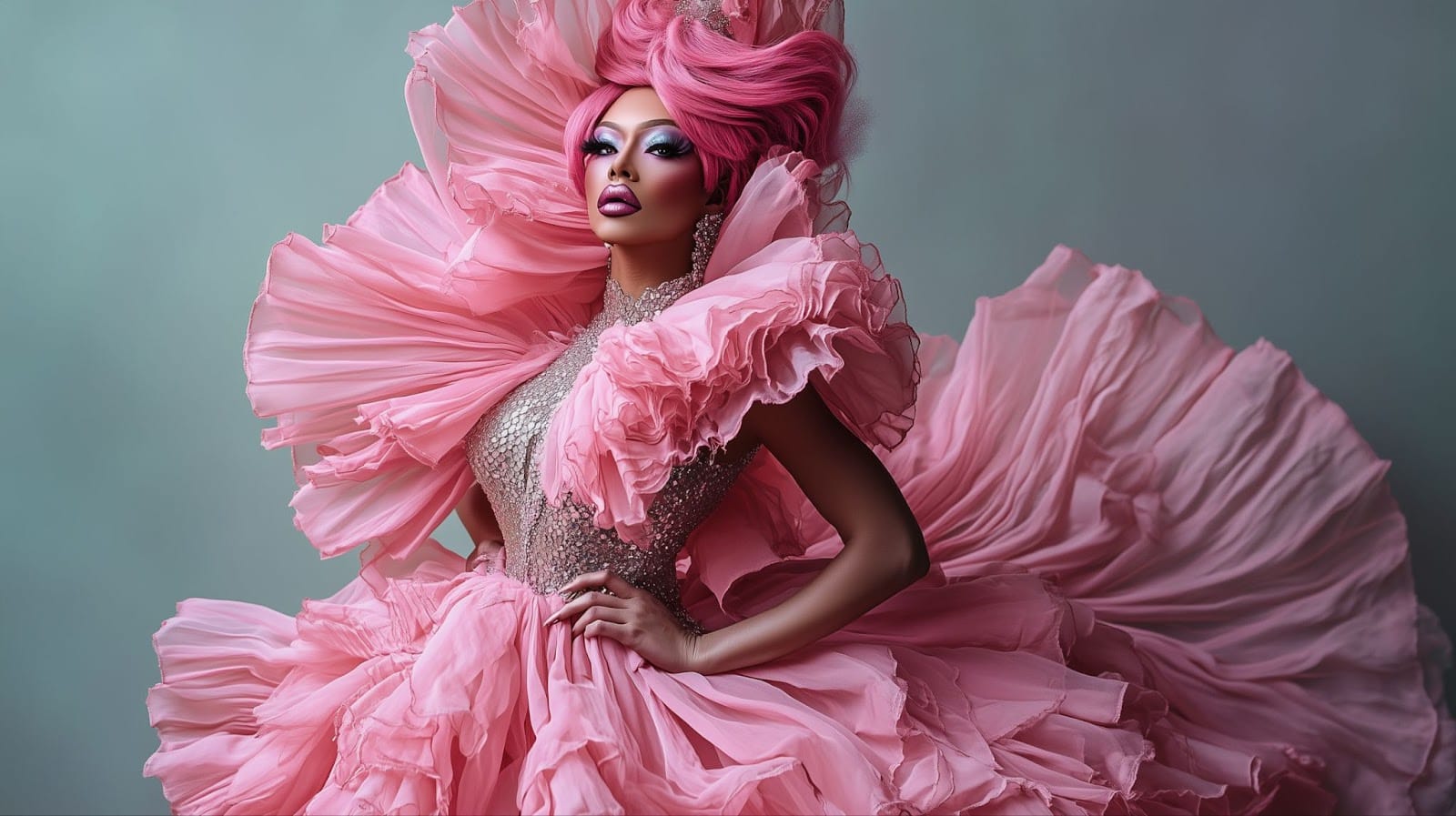
Teeth whitening in photo editing is easy to overdo. We break down how to get bright, natural-looking results every time.
The Reference You're Missing
Most people whiten teeth relative to the photo itself — they make the teeth brighter until they look good on screen. The problem is that the reference point is wrong. Teeth shouldn't be calibrated against the photo background or the subject's skin tone.
The correct reference is the whites of the eyes. Teeth that match or are slightly warmer than the eye whites look natural. Teeth that are significantly whiter look edited.
The whites of the eyes are your calibration point. Match them — don't beat them.
Warmth Matters as Much as Brightness
Real teeth aren't pure white — they have a slight warmth to them. Pure white teeth in a photo read as false almost immediately, even if the brightness level is correct.
When whitening, adjust both the lightness and the warmth. A slightly warm, bright result will always look more natural than a cool, clinical one.
Teeth Whitening
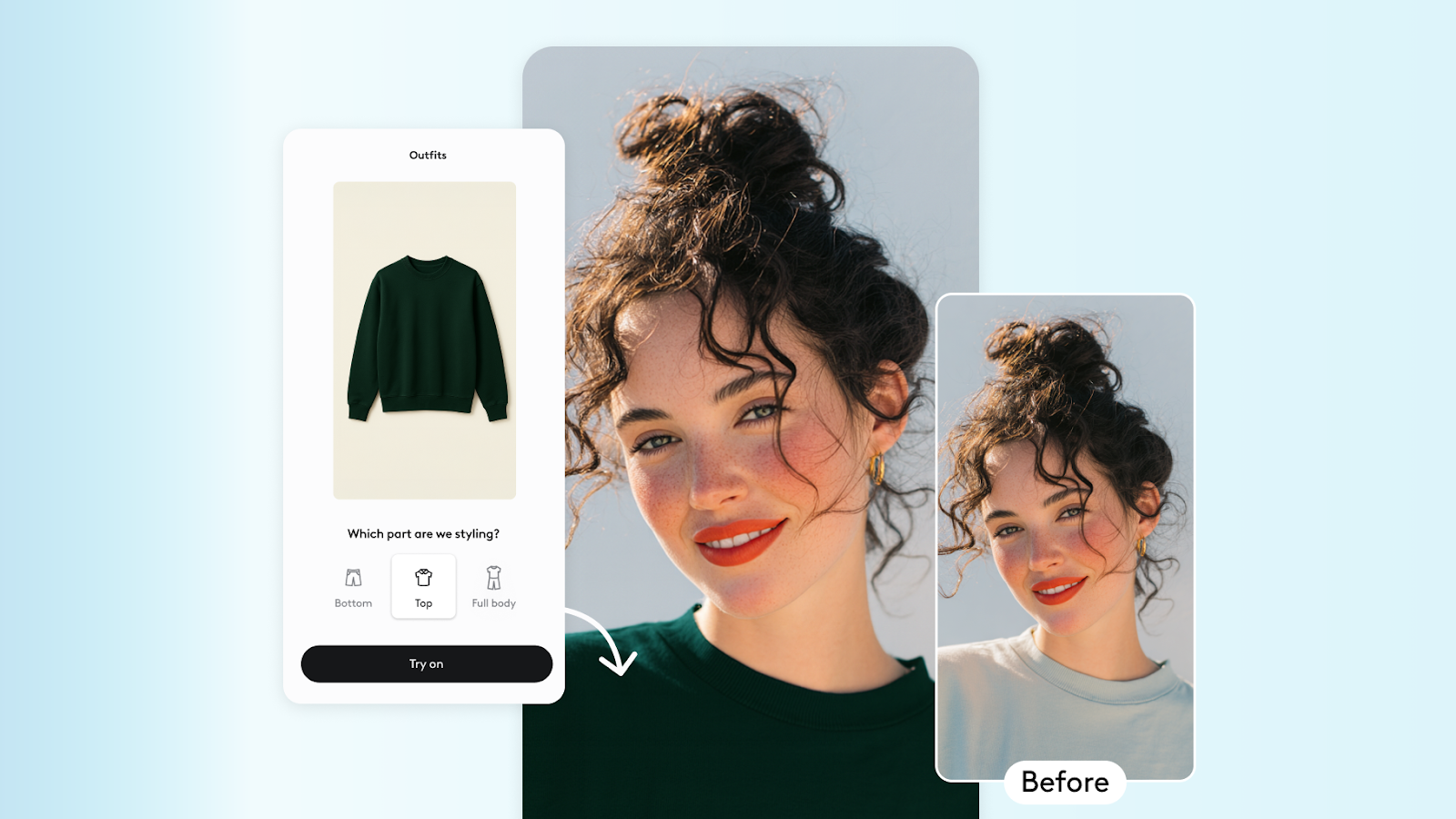
Whiten teeth naturally with a single adjustment — Facelab's AI controls both brightness and warmth to keep results looking real.
One More Thing: Check at 100%
Always evaluate teeth whitening at full resolution and full view — not zoomed in. Zoom tends to make edits look more extreme than they are. The right level of whitening is the one that reads naturally at viewing distance.
Frequently Asked Questions
How do I retouch a photo without it looking fake?
Can I use Facelab for professional photo editing?
What's the difference between skin smoothing and skin retouching?
Más en Belleza
Ver todo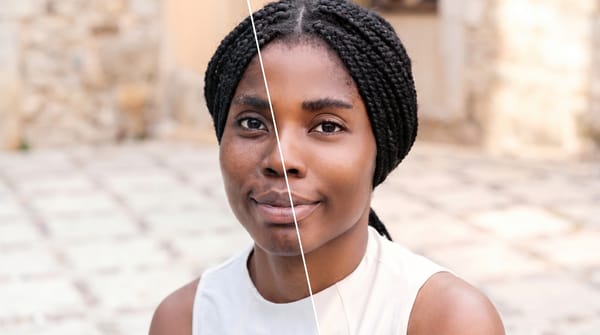
Face Retouching vs. Full Makeover: When to Use Each
Face retouching can be invisible when the work is done right. A full makeover can create a complete look.
How to Edit Your Body in Photos Without It Looking Fake
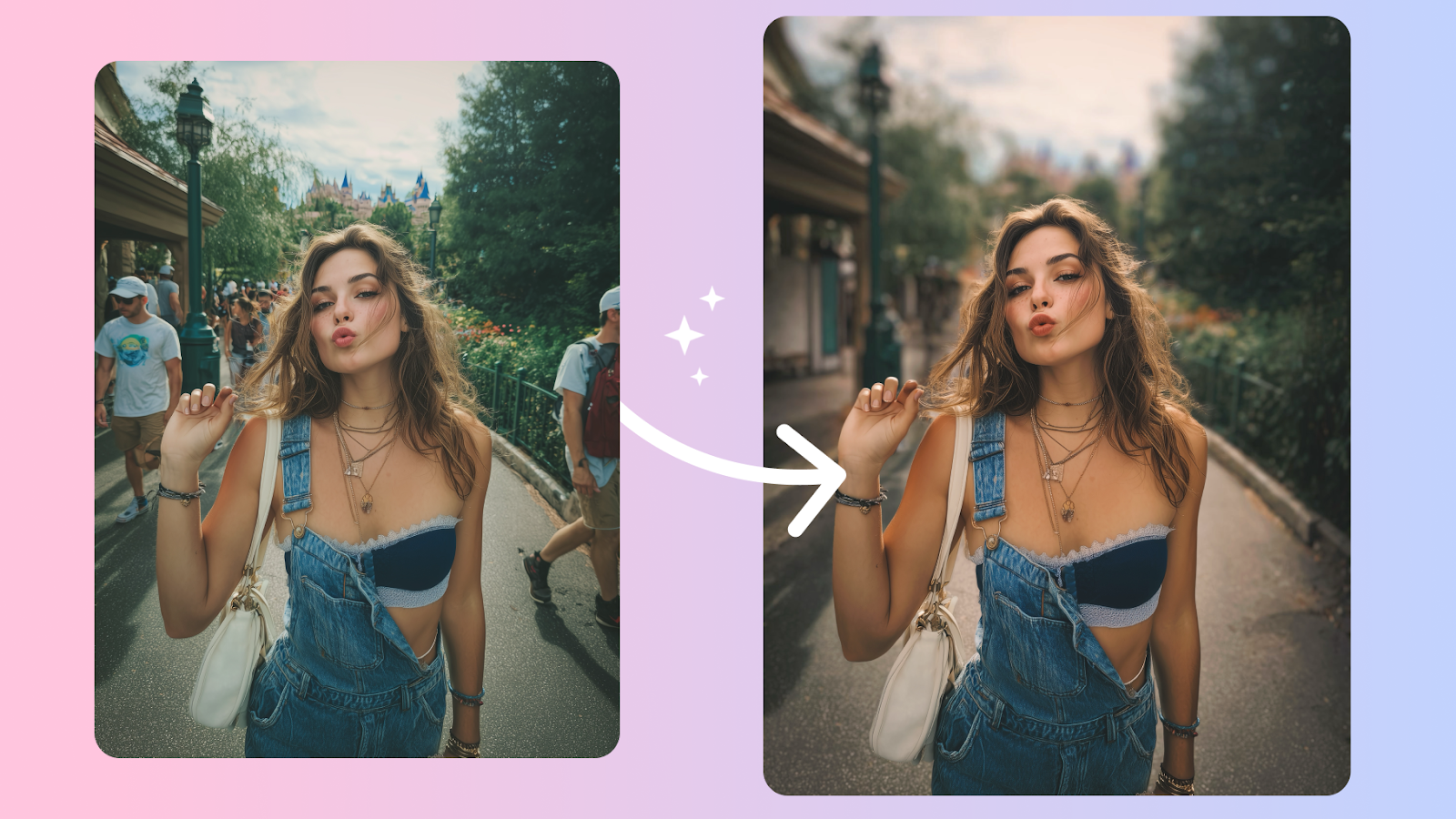
Body edits get caught when the background bends and the proportions don't add up. Here's how to keep edits believable, even on tricky shots.
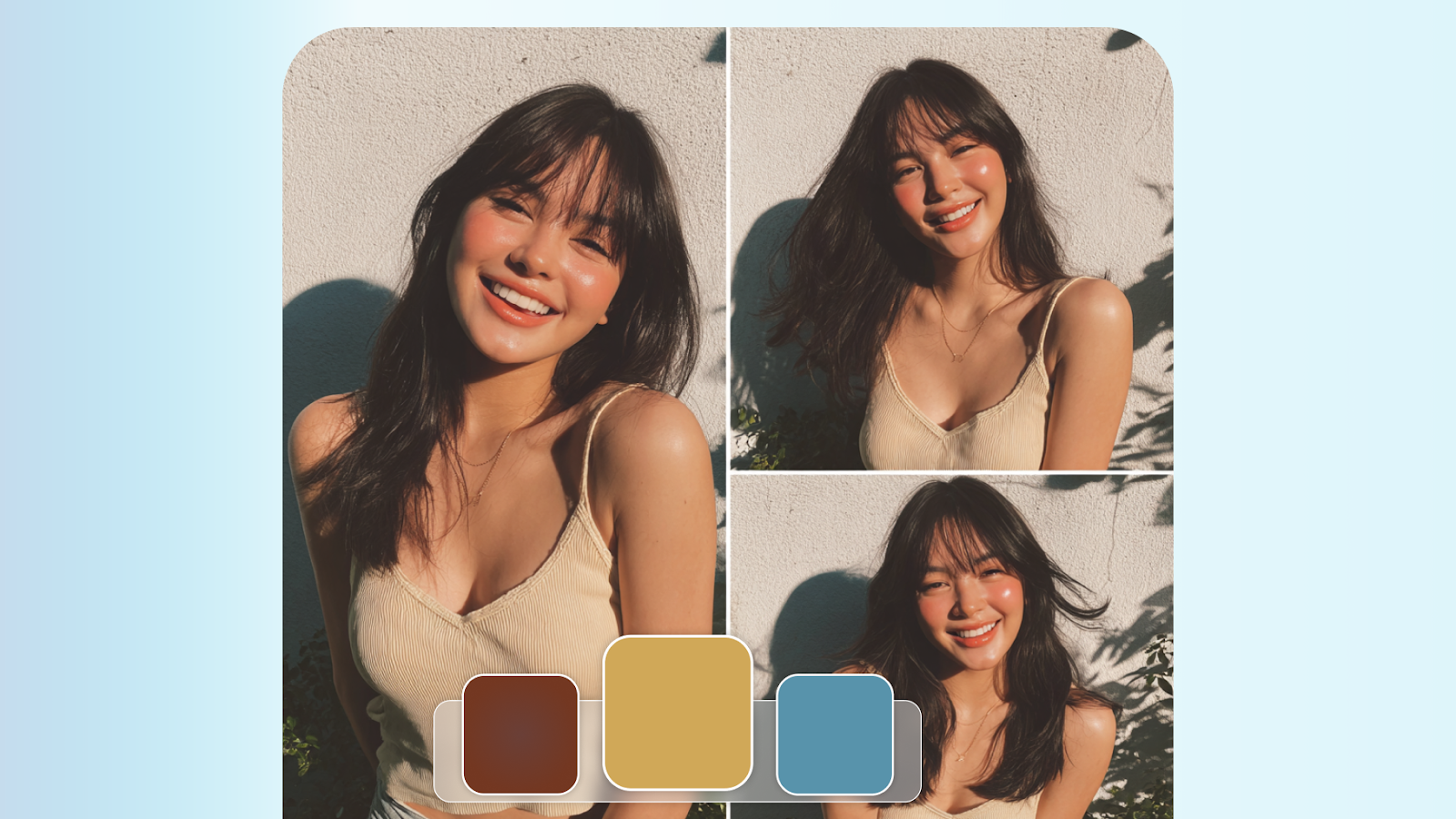
How to Retouch Skin Naturally — Without Losing Texture
The best skin retouching is invisible. It removes distractions without removing character. Here's how to walk that line every time.

